Inspect a record without losing your place.
A grid is useful for comparing records. When you need to read one record closely, a field-by-field view makes the work easier.
Keep the table in view
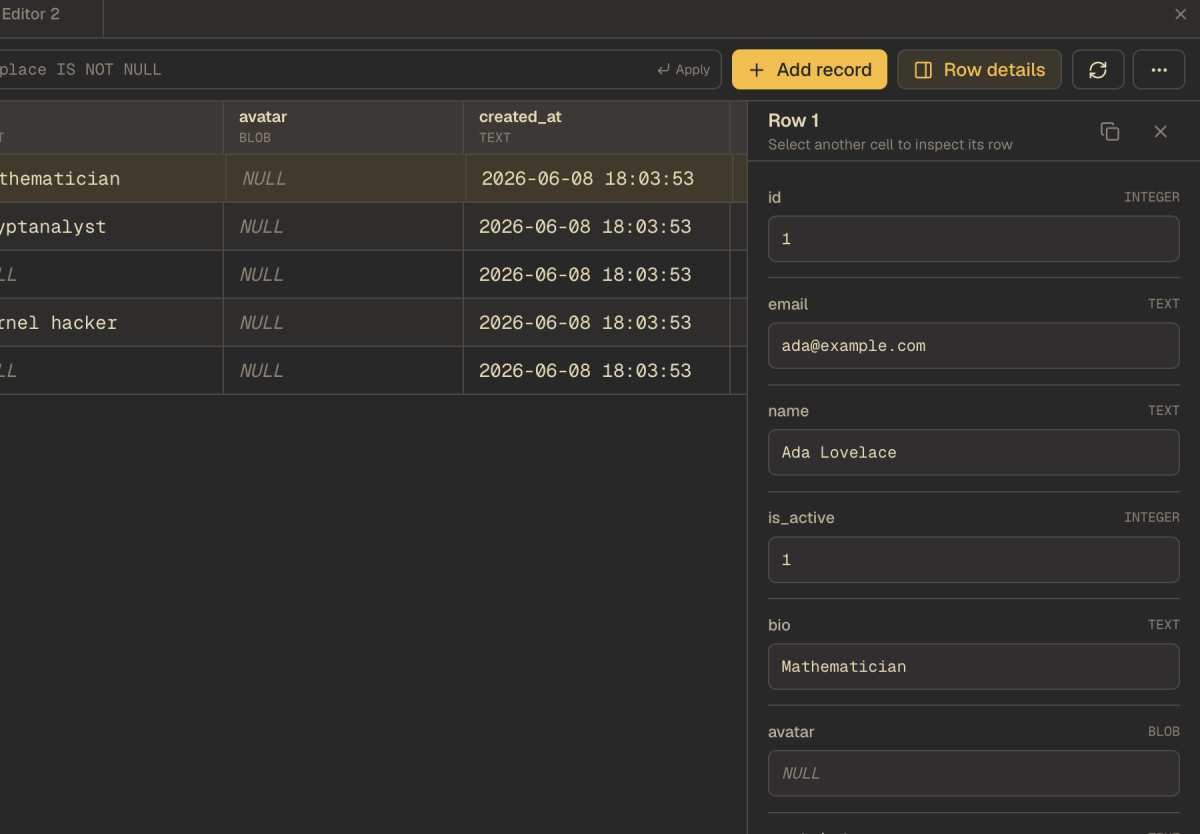
In JustDB, the row details panel sits beside the data grid. Select a cell and the panel shows the fields for that record. The surrounding rows remain visible, so you can move between the broader table and an individual value without opening another window.
The screenshot shows a sample users table. The selected record has a name, email, active flag, biography, avatar, and creation time. The grid makes it easy to compare those values across users; the panel gives each field its own space.
A simple inspection workflow
- Open a table from the sidebar and use the grid to find the record you want.
- Choose Row details in the toolbar, then select a cell in that record.
- Read the fields in the side panel. Select a different record to update the details without leaving the table.
- Close the panel when you want the full width of the grid again.
Distinguish an empty value from NULL
A missing value can mean something different from an empty string or a zero. JustDB displays NULL explicitly, as shown in the sample avatar field. Check that distinction when investigating incomplete records or unexpected query results.
Inspect first, edit deliberately
Use the panel to understand the record before making a change. To edit, double-click the relevant cell in the grid. Review your staged changes before applying them to the database.
Keeping inspection and editing close together makes it easier to check the record you are changing, while the surrounding table provides context.
More practical workflows are available in the JustDB blog.